Steady Three-Dimensional Incompressible Flow with Separation
Objective
The objective of this exercise is to introduce the modelling of three-dimensional flows and the graphical post-processing of three-dimensional simulation results.
Overview
The task is to calculate the flow around a delta wing at a high angle of attack (30°), equipped with a propeller mounted in a slot. The flow is confined within a wind tunnel and has a plane of symmetry. The tunnel dimensions are 150x200x600 cm. The working fluid is air, with a velocity of V=10m/s and a pressure of p=101325 Pa. The geometry considered in this exercise is a half-model, representing only one half of the delta wing and one half of the propeller disc. The flow is therefore assumed to be symmetric about the XZ plane.
Procedure
Geometry
In Workbench, create a new Fluid Flow(Fluent) analysis system.
Open DesignModeler by right-clicking the Geometry cell.
Set the units to centimetres.
Create a new sketch on the X-Y plane. Draw the geometry of one half of the delta wing as shown in the figure.
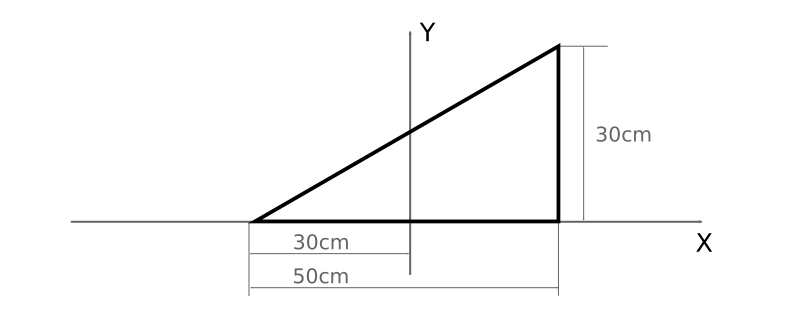
Create a surface from the sketch.
This produces a simplified delta wing, or more precisely, one half of it. The X-Z plane will serve as the mirror plane for the wing.
Next, create the surface representing the equivalent propeller.
Create a sketch on the Y-Z plane.
Within the sketch, use Arc by Center to create a semicircle as shown in the figure.
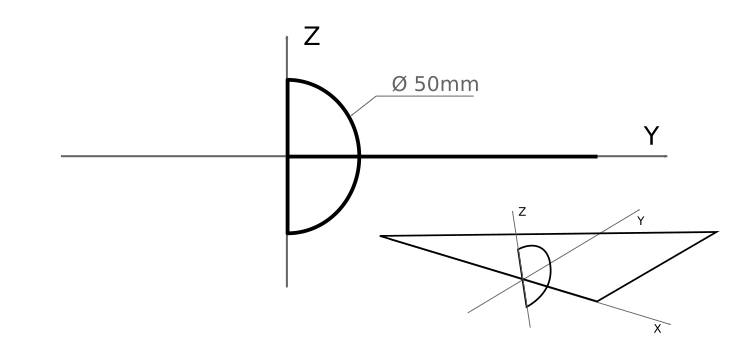
NOTE: The perimeter must be closed to create the propeller surface.
Remember to close the semicircle with a straight line.
Create a surface from the sketch.
The delta wing is currently at an angle of attack of 0°. Increase its angle of attack by 30 degrees.
From the Create menu, select Body Transformation, followed by Rotate.
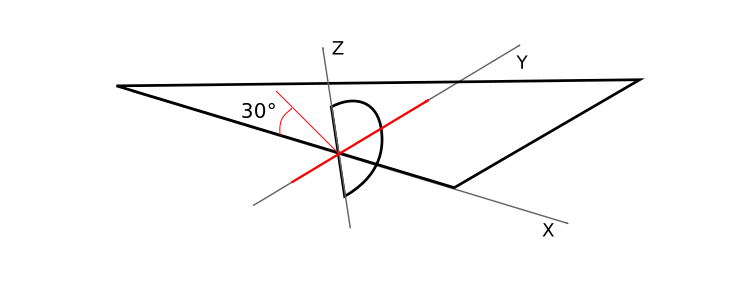 Fig. 3. Rotation
Select the geometry to be rotated using either of the following methods (see the figure):
- Hold Ctrl and select the required entities in the final item of the history tree.
- Select the surfaces in the graphics window.
If several entities lie beneath the cursor during selection, a graphical representation of these entities appears in the lower-left corner of the graphics window. The entities are represented as layers. The leftmost layer represents the entity closest to the viewer, while the rightmost layer represents the most distant entity. Hovering over a layer highlights the corresponding entity. Click the appropriate layer to select the required surface (see the figure).
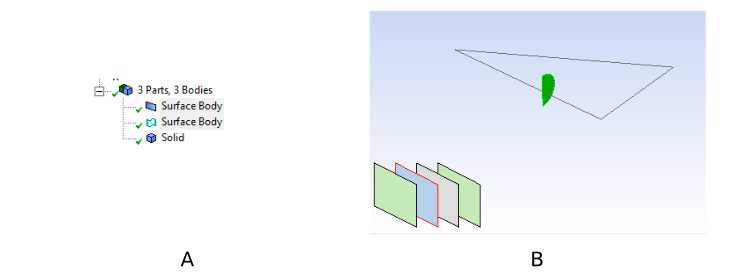 Fig. 4. Selection methods
Select the delta wing and the rotor.
Next, select the axis of rotation using either of the following methods (see the figure):
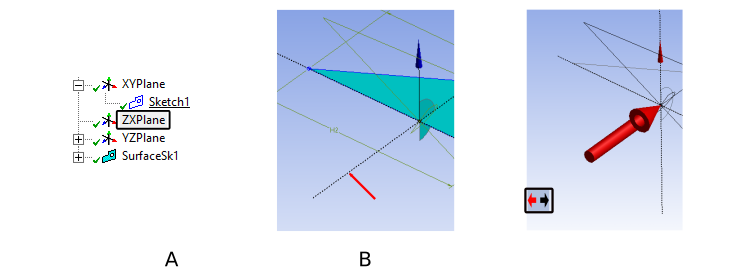 Fig. 5. Methods for specifying the axis of rotation
- In the plane list in the history tree, where the sketches are located, select the plane perpendicular to the required axis of rotation.
- In the graphics window, click the appropriate dashed line representing a coordinate axis.
The coloured coordinate triad in the lower-right corner of the graphics window is used only to manipulate the camera.
After an axis has been selected, axis-direction arrows appear in the graphics window. Click to set the required orientation of the axis of rotation. Orient the axis so that the rotation raises the nose of the wing towards the Z axis.
Enter the rotation angle for the surfaces.
Click Generate.
The final geometry construction step is to create the air volume.
From the Create menu, open Primitives and select Box.
— Origin Diagonal components X -250 cm 600 cm Y 0 cm 150 cm Z -80 cm 200 cm Set Operation — Add Frozen.
Click Generate.
If the body is not transparent after using Add Frozen and obscures the other geometry, select View -> Wireframe from the context menu to switch to a wireframe display.
Combine the created entities into a part. Select all entities in the body list at the bottom of the history tree, right-click, and select Form New Part.
Optional Extension
Create another Box.
— Origin Diagonal components X 0 cm 200 cm Y 0 cm 35 cm Z -20 cm 35 cm Set Operation — Add Frozen.
Click Generate.
Do not include this body in the part created in step 14. After step 14, there should be one part and one separate solid body.
- Close DesignModeler.
Computational Mesh
- Open the Mesh module.
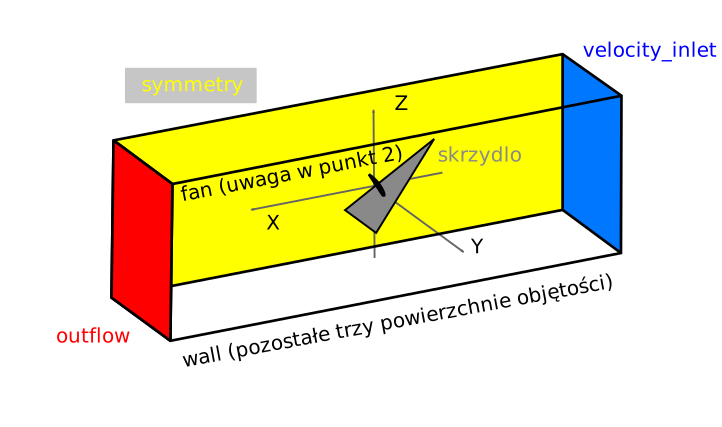
First, assign names to the boundaries (see the figure). In a three-dimensional analysis, boundary conditions are applied to surfaces. Surfaces are selected in the same way as in DesignModeler. After selecting a surface, press n on the keyboard and enter the boundary name.
NOTE: DesignModeler has divided the propeller surface into two parts. In the top menu, open Display and use Direction under Edge to display the edge directions. This allows you to check whether both surfaces have the same orientation, using the right-hand rule. The orientation of the propeller surface is important for the calculation.
- If both surfaces have the same orientation, select them together and assign a single name.
- If the surfaces have different orientations, name them separately using numerical suffixes: fan_1 and fan_2.
Proceed to the mesh settings.
Select Mesh in the history tree:
- Under Defaults, ensure that Physics Preference is set to CFD.
- Under Sizing, enable Capture Curvature, since the rotor surface is circular.
Generate the mesh. Verify that the wing geometry is represented correctly.
Select the wing surface and the rotor surface. Create a Sizing control for these surfaces:
- Type: Element Size.
- Element size: 10 mm, or 20mm for less powerful computers.
- Behavior: Hard.
Click Generate.
Create another Sizing control:
- Under Scope/Geometry, select the body representing the air. Ensure that you select the volume, not a surface.
- Type: Sphere of Influence.
- Sphere Radius: 500 mm.
- Element size: 30 mm, or 50mm for less powerful computers.
Click Generate.
Examine the mesh. What has changed?
Optional Extension — Continued
Create another Sizing control:
- Under Scope/Geometry, select the body representing the air. Ensure that you select the volume, not a surface.
- Type: Body of Influence.
- Bodies of Influence: Select the additional volume created in step 15.
- Element size: 30 mm.
Click Generate.
Examine the changes again and consider the purpose of the additional mesh refinement.
- Close the Mesh module.
Calculations in Fluent
Launch Fluent.
Set the initial solver options:
- Dimension: 3d.
- Display Mesh After Reading.
Configure the analysis:
- General:
- Type: Pressure-Based.
- Time: Steady.
- Models:
- Turbulence model: Spalart-Allmaras.
- Materials:
- Air with the default properties.
- Cell zone conditions:
- Ensure that air is assigned to the computational domain.
- Boundary conditions: double-click the corresponding tree item, or
open Physics in the top menu and select
Boundaries under Zones.
Inlet — velocity: 10 m/s; turbulence intensity: 2%; turbulence length scale: 0.5 cm.
Symmetry — verify that the correct boundary condition has been assigned.
Wing — ensure that a wall boundary condition has been assigned to the wing.
When the boundary type is set to wall, note that Fluent creates a second surface. Consider why this occurs.
fan:
- Check the direction of the normal to the rotor surface, specifically the X component of the normal vector. If the normal points in the wrong direction, select Reverse Fan Direction.
- In the Pressure Jump (unit) drop-down menu, select constant.
- Initially, perform the calculation without propeller action by entering 0.0.
Outflow — retain the default settings.
- General:
Configure the solver:
- Methods:
- Scheme: Coupled.
- Monitors/Residual:
- Retain the default convergence criteria.
- Methods:
Initialise the solution using Standard Initialization.
Select the inlet as the reference boundary.
Run the calculation until the required convergence is achieved. Under Run Calculation, change only Number of Iterations in the Parameters panel.
The computational time will be noticeably longer because the simulation is three-dimensional.
Generate flow visualisations for the simulation. Consider which visualisations provide the most useful information about the flow, and present them.
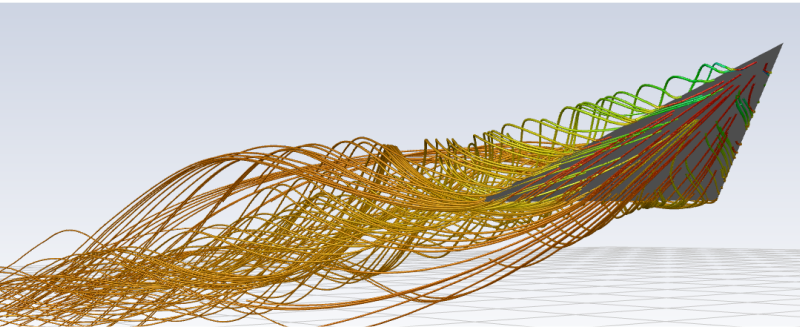
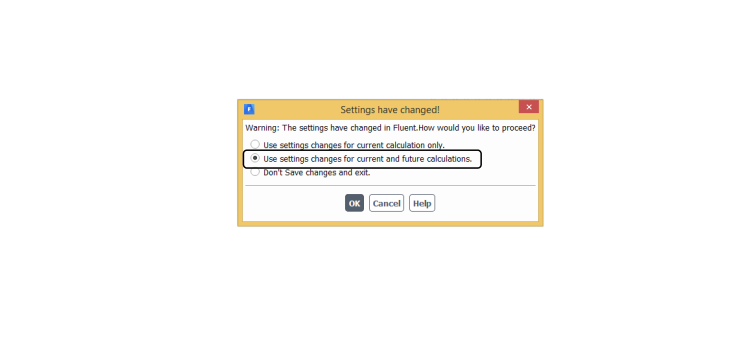
- Close Fluent. When prompted on exit, select the second option. This preserves all post-processing settings, including those for visualisation and data processing.
Duplicate the analysis system.
Activate the propeller by setting the pressure jump at the fan boundary to 200 Pa (see step 3).
Initialise the solution and run the calculation until the required convergence is achieved.
Repeat the visualisations and compare the results with those obtained without propeller action.